Tax File Inquiry
Tax records can be retrieved in two menu areas of Compass XD, Inquiry Search and Tax Reporting. Within these two areas, users can add, edit, or delete a record or print a single notice.
Inquiry Search:
Customer information
Account information
Tax Reporting
Tax File inquiry
Inquiry Search - Customer Information
A tax record can be located by searching within Inquiry Search.
Search the customer by using the Account #, CIS #, PAN #, SSN/TIN or Short Name.

Select Search.
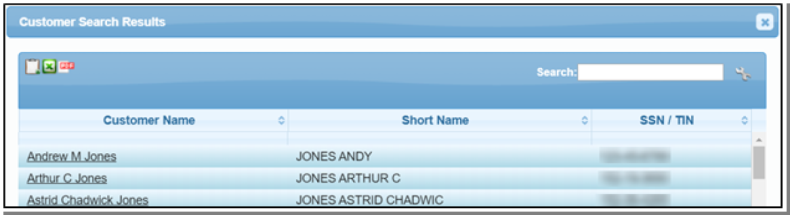
Select customer from the Customer Search Results window.
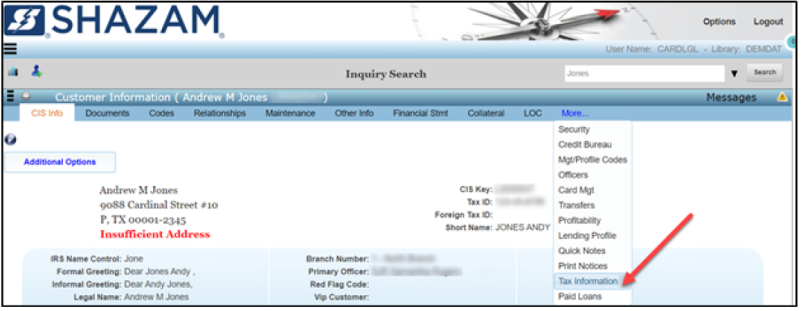
In the Customer Information window, select More...
Select Tax Information.
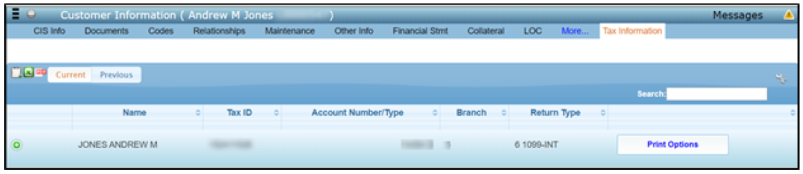
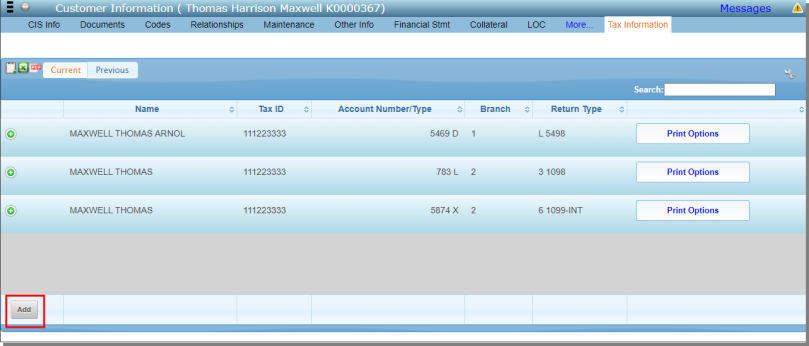
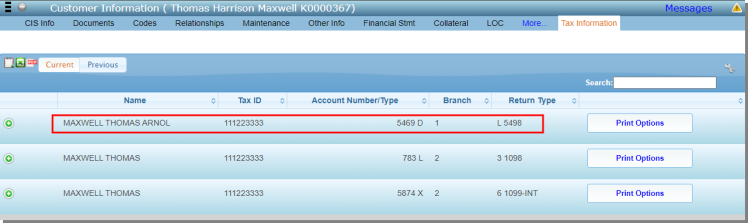
Tax Records for the customer will be reflected in the Tax Information window.
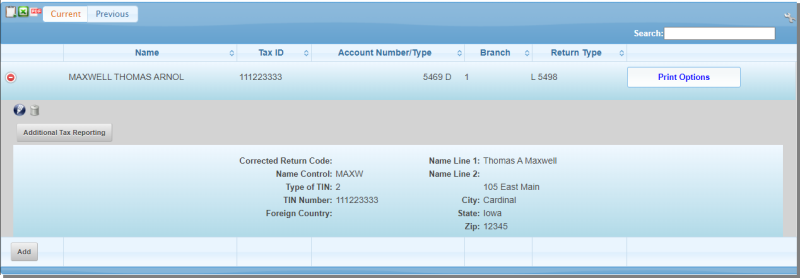
The details of the tax record can be shown be selecting the Expand icon.
ADD A NEW TAX RECORD
A new record can be added from the Inquiry search.
From the Tax Information window, select the Add button.
Current Year Add Form will display.
The General accordion will be open.
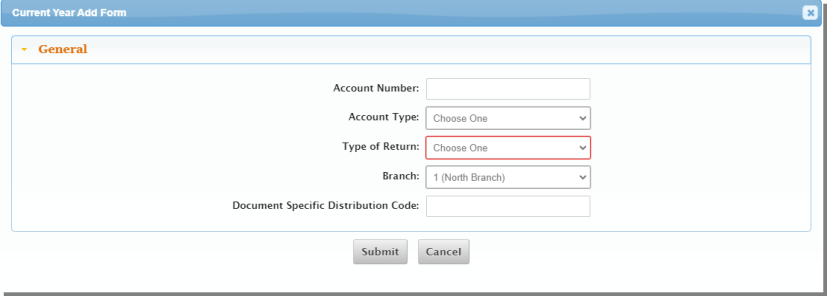
Complete the following fields:
| Account Number | Enter the account number associated with the tax record. |
| Account Type | Enter the type of account (ex: D - Deposit, S - Savings). |
|
Type of Return |
Enter the type of return (ex: 1099 INT, 1098). |
|
Branch |
Enter the branch number for the account. |
|
Document Specific Distribution Code |
(Optional) Enter the document specific distribution code. Reference IRS Publication 1220 for reporting year. |
Select Submit.
The Edit Tax Record window will display with the General accordion expanded.
_553x175.jpg)
Complete the following fields:
| Corrected Return Code | Enter the corrected return code. This field is ONLY used once the records have been previously submitted to the IRS and a correction file must be submitted. |
| Name Control | Enter the name control customer. |
|
Type of TIN |
Enter the type of TIN. |
|
TIN Number |
Enter the TIN number of the customer. |
|
Account Number |
Enter the account number associated. NOTE: This field is not required, Example: bonds and accounts payable will not have an account number. |
|
Foreign Country |
Enter the foreign country if applicable. |
|
Name Line 1 |
Enter the name line 1 of the account. |
|
Name Line 2 |
Enter the name line 2 of the account. |
|
Mailing Address |
Enter the mailing address. |
|
City |
Enter the city. |
|
State |
Enter the state. |
|
Zip |
Enter the zip code. |
|
Mail Code |
Enter the mail code if applicable. |
Select the Amount Lines accordion.
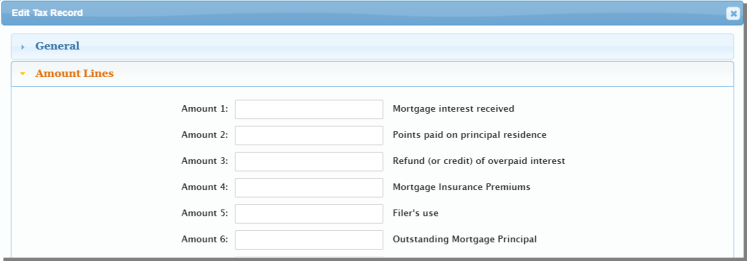
Enter the amount information for the tax record being added.
Select the Special Data Entries accordion.
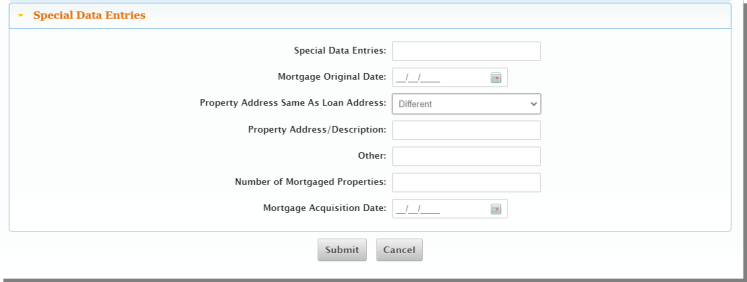
Once all required information is completed in the above tabs, select Submit.
NOTE: Amount Lines and Special Data Entries tabs may changed based on the form selected.
The new record will be listed in the Customer Information window.
EDIT A TAX RECORD
A tax record can be added from Inquiry Search.
From the Tax Information window, locate the tax record to be edited.
Select the Expand icon.

Select the Edit icon.
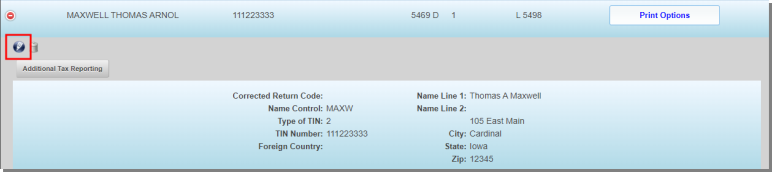
Enter all edits within the accordions and select Submit.
DELETE A TAX RECORD
A tax record can be deleted from Inquiry Search.
From the Tax Information window, locate the form to be deleted.
Select the Expand icon.

Select Delete to Confirm.
The record has now been removed from the list.
PRINTING A SINGLE NOTICE
A tax record can be printed from Inquiry Search.
From the Tax Information window, locate the form to printed in the list.
Select Print Options.

Print options will display.
Once the print option has been selected, the Select Printer window will appear.
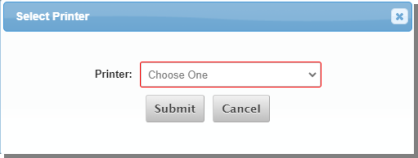
Select the printer notice will be printed to.
Select Submit.
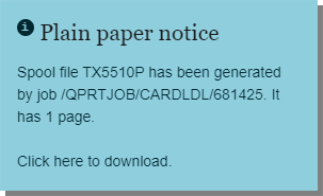
The print notification will appear and the user will download the report to be printed. The notice will be printed to the selected printer.
Inquiry Search - Account List
A tax record can be located by searching within Inquiry Search.
Search the customer by using the Account #, CIS #, PAN #, SSN/TIN or Short Name.
Select Search.
Select customer from the Customer Search Results window.
In the Accounts List window, select the account regarding the tax record.
Select Additional, then select More > Tax Information.
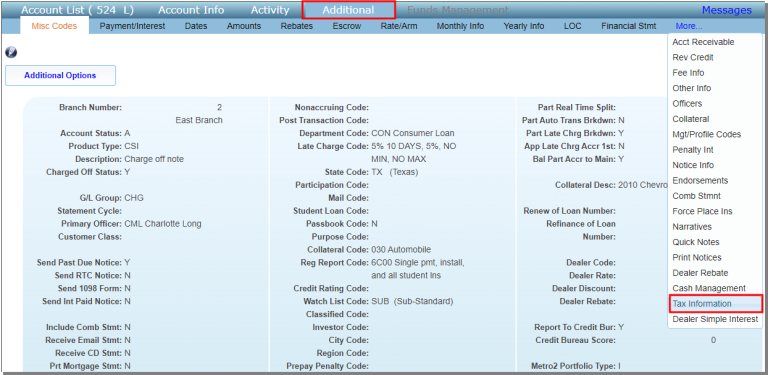
The Tax Information window will be displayed.
Follow the steps detailed in the Inquiry Search - Customer Information to continue.
NOTE: Tax records may also be located at the Loan Account and Shareholder Account levels.
Tax File Inquiry
A tax record can also be located from the Tax File Inquiry within the Tax Information menu.
From the main user menu, select Tax Information.
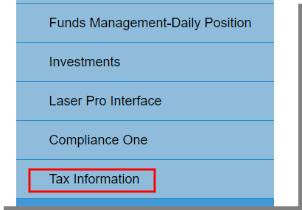
Tax File Inquiry will be displayed.
Search the customer by using the Account #, Short Name, or TIN.

Select Search.
Tax Records for the customer will be reflected in the Tax Records window.
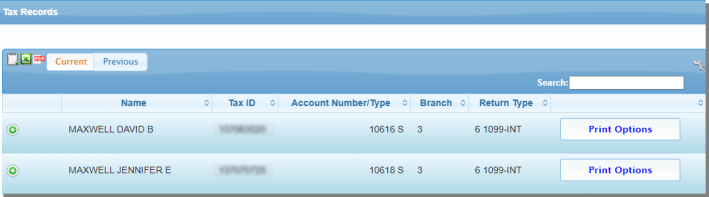
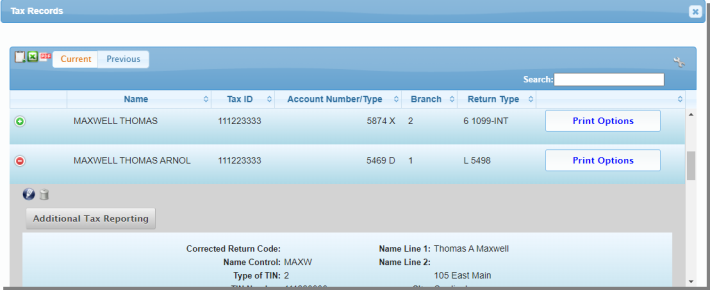
The details of the tax record can be shown by selecting the Expand icon.
ADD A NEW TAX RECORD
A new tax record can be added from the Tax File Inquiry.
From the Tax File Inquiry screen, search for a customer. This will prompt the Tax Records window.
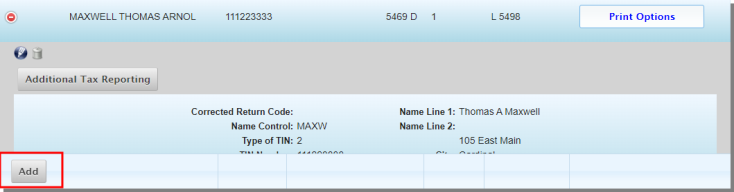
Select the Add button.
Search for the customer by using the Account #, CIS #, SSN/TIN, or Short Name within the Customer Search window.

Select the customer name for the new record.
The Current Year Add Form will display.
The General accordion will be expanded.
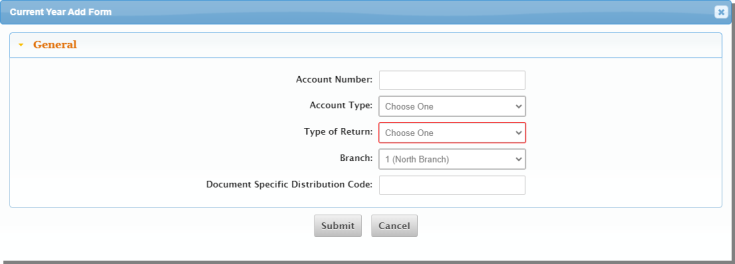
Complete the following fields:
| Account Number | Enter the account number associated with the tax record. |
| Account Type | Enter the account type (ex: D - Deposit, S - Savings). |
|
Type of Return |
Enter the type of return (ex: 1099 INT, 1098). |
|
Branch |
Enter the branch number for the account. |
|
Document Specific Distribution Code |
(Optional) enter the document specific distribution code. Reference the IRS Publication 1220 for reporting year. |
Select Submit.
The Edit Tax Record window will display.
The General accordion will be displayed.
Follow the steps detailed in the Inquiry Search - Customer Information to continue.
Once all required information is completed in General, Amount Lines and Special Data Entries tabs, select Submit.
NOTE: Amount Lines and Special Data Entries tabs may change based on the form selected.
A new tax record will be listed in the Tax Records window.
EDIT A TAX RECORD
Follow the steps for editing a tax record found in Inquiry Search > Customer Information > Edit a Tax Record.
DELETE A TAX RECORD
Follow the steps for deleting a tax record found in Inquiry Search > Customer Information > Delete a Tax Record.